



Using babblevoice Desktop
babblevoice Desktop is a helper application designed to make using your phone easier. A range of functions can be carried out via the desktop application on your PC, including answering calls, transferring calls, and picking up calls from a queue. This document outlines all the features available to you within Desktop.
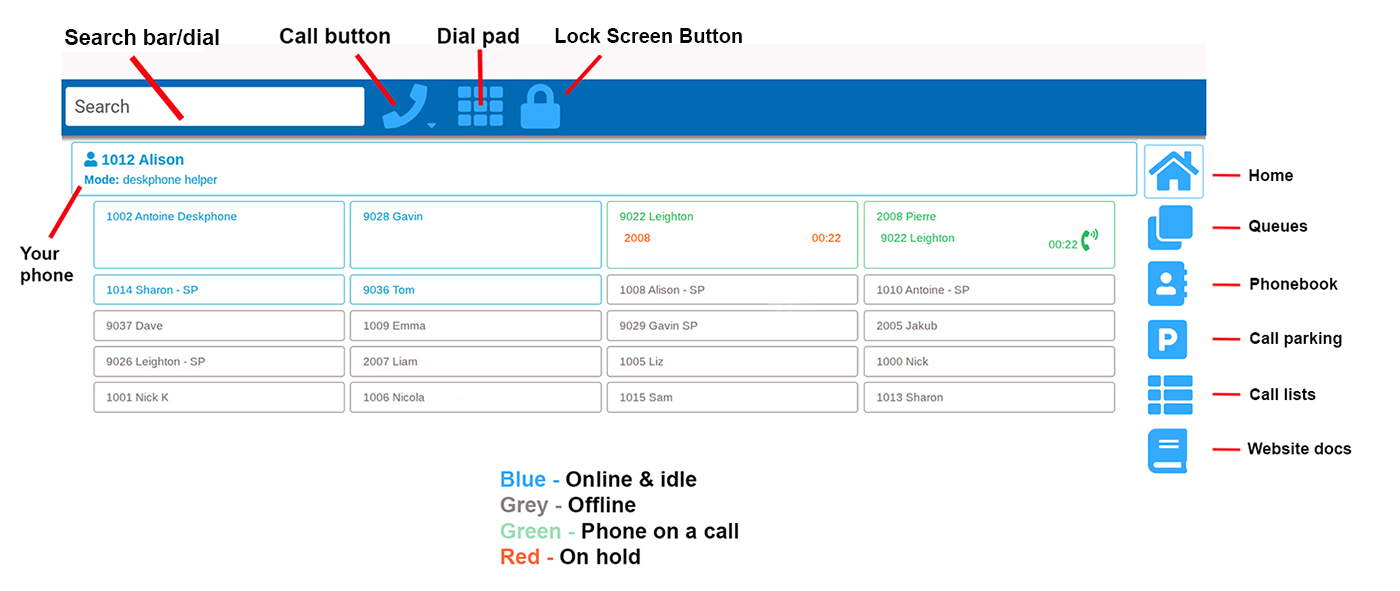
The Control Bar
At the top of babblevoice Desktop, you will find the main control bar, which includes menu items and a main menu drop-down box within the search bar (see The Search Bar below). Within the main menu, the "General: Configure" option allows you to configure your Desktop settings. Please refer to our Configuring Desktop guide for further details. A sign-out button is also available in this area.
The Search Bar
The search bar is the main control for most actions within Desktop and can be used to search for a command or action.
- Type "recent" to view the most recently dialled or received numbers.
- Type a name or extension number (without pressing Enter) to search for another phone or extension.
- Type a name and press Enter to search your contacts. If you have any plug-ins installed, this search will also extend to contacts within the relevant plug-in, depending on its functionality.
The menu displayed on the right-hand side of the screen
- Home - This will take you back to the home page to view the phones on your domain.
- Queues - This shows you your currently selected queues.
- Phonebook - This is where you can save your contacts. * Note: any contacts saved as global will be visible to everyone.
- Call parking - This displays how many calls are currently parked.
- Call lists - This displays any call lists that have been created.
- Website docs - This takes you to our website document section.
Mode: Deskphone Helper vs. Softphone
The mode indicator appears just below your own phone extension and will display either "Mode: deskphone helper" or "Mode: softphone".
- Deskphone helper mode: Calls are made using your physical desk phone, for example from EMIS or SystmOne, or by clicking a phone number to dial internally.
- Softphone mode: Calls are made, received, and transferred entirely through the babblevoice Desktop application.
If you are using softphone mode, a status indicator will appear in the top row, immediately after the sign-out button:
- Green ("Ready") – Your softphone is registered.
- Red – Your softphone is not registered. Click the indicator to register.
Click on the following for more information on how to use Desktop:
- Making a call on Desktop
- Transferring a call on Desktop
- Manager Spy
- Call Queues
- Audible Call Alert
- Call Parking
- Call Lists
If you can not find the information you need then please get in touch.